
How To Turn Images Into Videos With AI (Step-By-Step Guide)
Learn how to animate photos, product images, screenshots, and AI-generated artwork into engaging videos using modern AI tools.
Some links on this page are affiliate links. We may earn a commission at no extra cost to you. This does not influence our editorial recommendations.
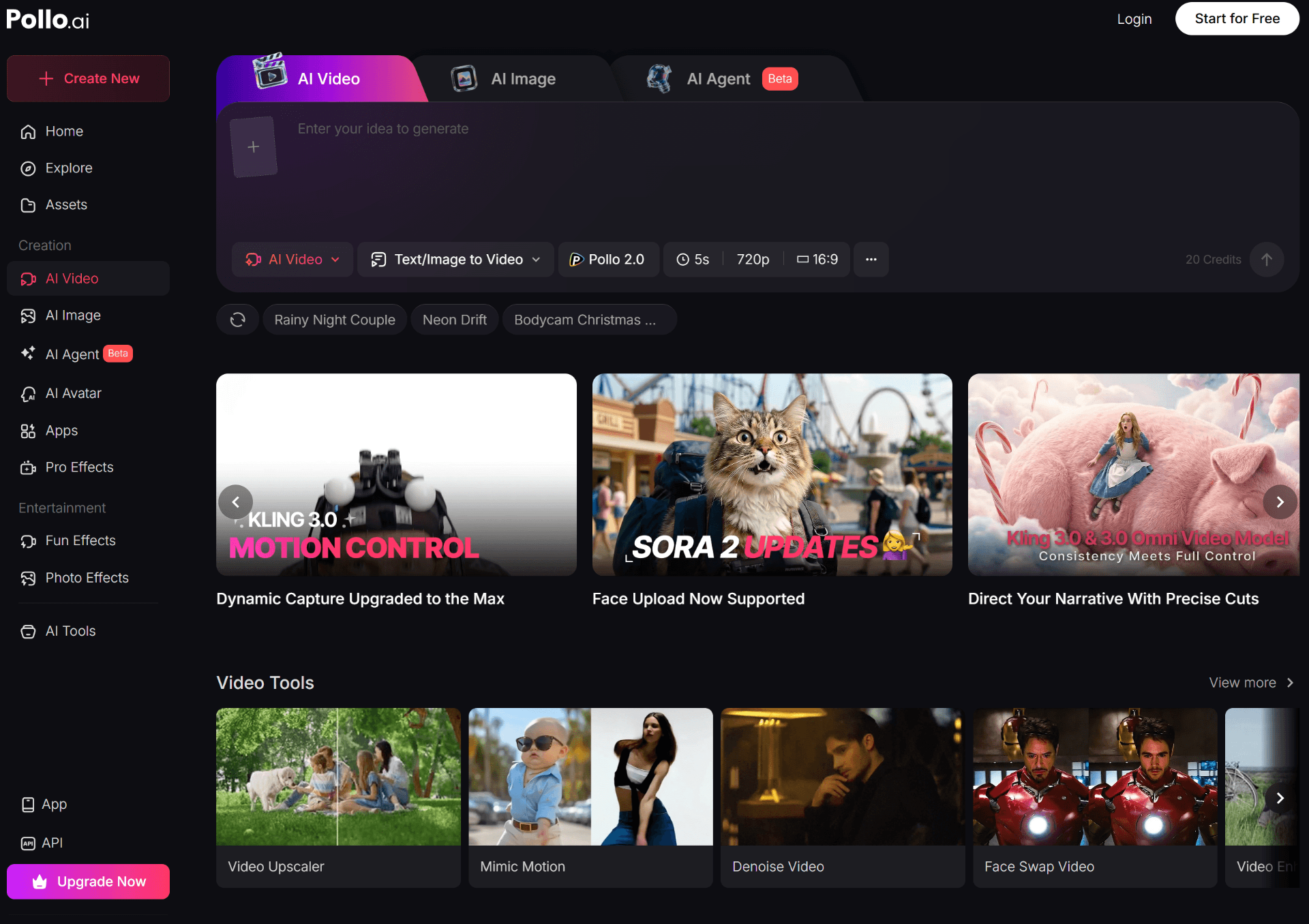
Can AI Turn Images Into Videos?
- Can AI turn images into videos? Yes — modern AI models can animate still images into short video clips in minutes.
- How long does it take? Most clips generate in 30 seconds to 2 minutes, depending on the platform and settings.
- Which tool is easiest? Pollo AI — built for beginners with templates, presets, and a clean workflow.
- Which tool do we recommend? ⭐ Pollo AI — best balance of ease, quality, pricing, and commercial rights.
What Is Image-To-Video AI?
Image-to-video AI is a technology that takes a single still image — or a series of images — and generates a short motion video from it. Instead of filming real footage, you upload a photo and the AI predicts what natural movement would look like based on the contents of that image.
Here's a simple way to think about it: the AI looks at your image, identifies the subjects, background, and objects, then creates a sequence of frames that show those elements in motion. The result is typically a 5 to 10 second video clip that starts exactly from your original image.
How It Actually Works
Under the hood, these tools use diffusion-based video models. They've been trained on millions of video clips and have learned to predict motion patterns. When you upload an image and add a prompt like "camera slowly pans left, woman smiles gently," the model generates frames that match both your starting image and your motion description.
You don't need to understand the technical details to use it. What matters is that the quality has improved dramatically over the past 12 months. The best models now produce motion that looks natural rather than robotic or distorted.
Image-To-Video vs. Text-To-Video
Text-to-video generates everything from a written prompt — the scene, the subjects, and the motion. Image-to-video starts from an image you already have. The advantage is control: if you have a specific product photo, portrait, or AI-generated still that you want to bring to life, image-to-video keeps that exact starting frame.
For ecommerce stores, this is a game-changer. Your product photo becomes the first frame of a video ad. For creators, your AI-generated artwork becomes animated content for social feeds.
Image-To-Video vs. Traditional Video Editing
Traditional video editing requires footage. You film something, import the clips, cut them together, add effects, and export. Image-to-video skips the filming step entirely. You don't need a camera, a set, lighting, or actors. You upload an image, describe the motion you want, and the AI creates the footage for you.
The trade-off is length and control. AI image-to-video produces short clips — usually under 10 seconds — and you have less granular control than you would in Premiere or DaVinci Resolve. But for social ads, hooks, and short-form content, that's often exactly what you need.
What Types Of Images Work Best?
Not every image produces great results. After analyzing the current features and workflows across the major platforms, here are the image types that consistently deliver the strongest video output:
Product Photos
Clean, well-lit product shots on neutral or simple backgrounds work exceptionally well. The AI can add subtle rotation, a slow zoom, or environmental motion without distorting the product itself. This is where ecommerce brands get the highest ROI from image-to-video.
Lifestyle Photos
Images with people in natural settings — walking, sitting, cooking, exercising — animate well because the AI has extensive training data on human motion. The more clearly the pose is visible, the better the results.
Portraits
Portrait images produce some of the most impressive results. Subtle head movement, blinking, expression changes, and hair motion can all be generated from a single still portrait. Faceless creators and character-driven channels use this heavily.
Landscapes
Scenery shots with clear depth — foreground, midground, background — work well for cinematic B-roll. The AI can add camera movement, drifting clouds, water motion, and light shifts.
AI-Generated Images
Images created with Midjourney, DALL-E, Stable Diffusion, or Flux animate beautifully because they're already compositionally clean. Many creators build an entire workflow: generate a still with one AI tool, animate it with an image-to-video tool, then publish.
Screenshots
UI screenshots and app mockups can be animated for product demos and SaaS marketing. Simple motions like scrolling, cursor movement, and element pop-ins are easy to generate and highly effective for landing pages and ads.
Step-By-Step Tutorial: Turn An Image Into A Video
Below is a beginner-friendly workflow using Pollo AI as the example platform. The steps are nearly identical across most image-to-video tools, so you can apply this process elsewhere if you prefer.
Step 1: Choose Your Image
Start with a high-resolution image. If you're creating a product video, use your best product photo. For social content, pick an image with a clear focal point and minimal clutter. The cleaner the starting image, the cleaner the motion.
Step 2: Upload The Image
Inside Pollo AI, navigate to the image-to-video tool and upload your image. Most formats are supported — JPG, PNG, and WebP are the safest bets. The platform will show you a preview of your image before you proceed.
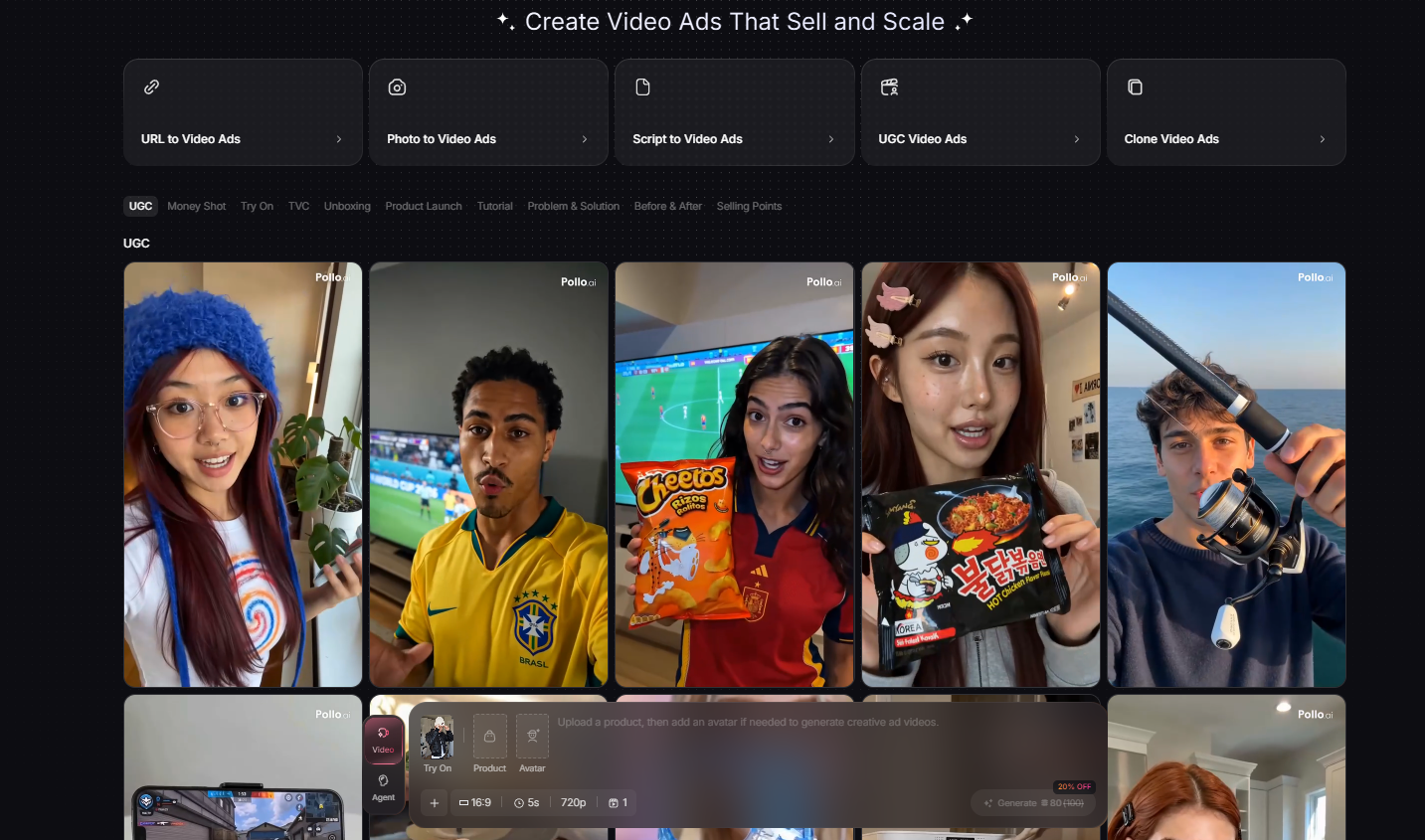
Step 3: Add A Motion Prompt
Describe the motion you want to see. Keep it simple at first. Examples that work well: "slow zoom in," "gentle pan to the right," "woman looks at camera and smiles," "product rotates slowly." Avoid overly complex prompts with multiple conflicting motions — the AI performs best with one clear direction.
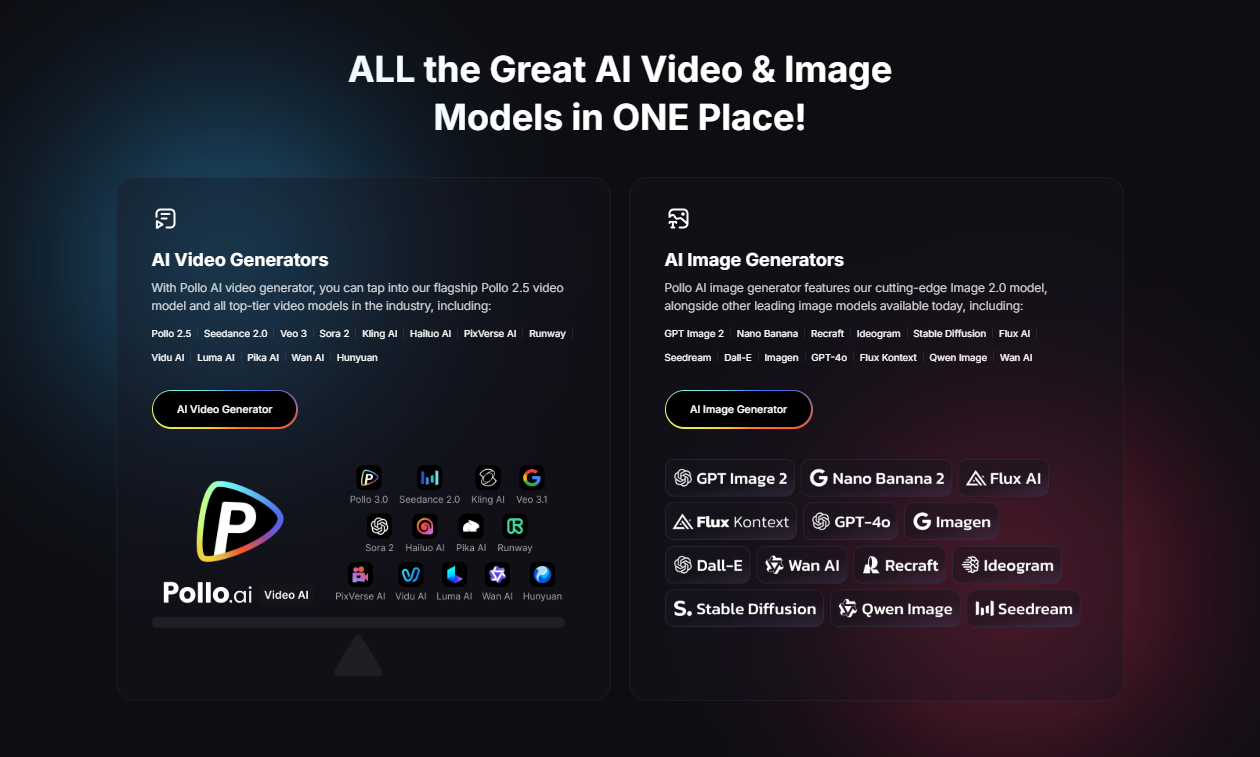
Step 4: Choose An AI Model
Pollo AI lets you choose between several models — Kling for realistic motion, Hailuo for character work, PixVerse for social clips, and more. For beginners, the default model is usually fine. As you get comfortable, experiment with different models to see which style matches your content best.
Step 5: Generate The Video
Click generate and wait. A standard 5-second clip usually finishes in under 2 minutes. Pollo AI will show you a progress indicator. Once complete, you can preview the video directly in the dashboard before deciding to keep or regenerate it.
Step 6: Export And Use
Download the video in your preferred resolution. Most tools export MP4, which works on every social platform. From here, you can upload directly to TikTok, Instagram Reels, YouTube Shorts, Pinterest, or import the clip into a larger video project.
Best AI Tools For Turning Images Into Videos
After analyzing the current features and pricing across the market, here are the six tools worth knowing about. We've linked to our full reviews where available.
Pollo AI
Multi-model access, beginner-friendly templates, commercial rights, and fair pricing. The best starting point for most creators, especially affiliate marketers and ecommerce stores. See our full Pollo AI review or pricing breakdown.
Kling
Exceptional at realistic physics and natural motion. Best for creators who prioritize photorealism. Available standalone or inside Pollo AI.
Runway
The most cinematic option. Filmmaker-grade output with professional editing tools. Higher price tag, but unmatched for narrative and artistic work.
PixVerse
Fast, social-first, and generous free plan. Ideal for TikTok creators who need volume and speed over cinematic depth.
Hailuo (MiniMax)
Strong character animation and identity preservation. Great for faceless creators and avatar-led content.
Pika
Creative effects and stylized presets. Best for meme content, playful TikTok edits, and artistic experimentation.
Want a side-by-side comparison? See our full comparison of the best AI image-to-video generators.
Common Mistakes Beginners Make
Most bad results come from user error, not the AI itself. Here are the four mistakes we see over and over again:
Using Low-Quality Images
The AI can't invent detail that isn't there. A blurry 400x400 image will produce a blurry video. Start with the highest resolution image you have. For product photos, export directly from your design file or camera rather than downloading a compressed version from social media.
Overly Complex Prompts
Beginners often write long, elaborate motion prompts with five different actions happening at once. The AI performs better with one clear motion. "Camera slowly pushes in" beats "camera zooms in while woman turns around and waves at the camera and a bird flies overhead."
Wrong Aspect Ratio
Uploading a horizontal landscape photo and expecting a vertical TikTok video usually crops off important parts of the image. Choose your target platform before uploading, and crop your image to match. 9:16 for TikTok/Reels/Shorts, 16:9 for YouTube and desktop ads, 1:1 for Instagram feed.
Ignoring Commercial Rights
Free plans almost never include commercial usage rights. If you generate a video on a free plan and use it in a paid Facebook ad, you're violating the terms. Always upgrade to a paid plan before using AI-generated videos commercially.
How Ecommerce Brands Use Image-To-Video
Ecommerce was one of the earliest adopters of image-to-video AI, and for good reason. Turning a static product photo into a video ad used to require filming, editing, and often hiring a creator. Now it takes minutes.
Product Ads
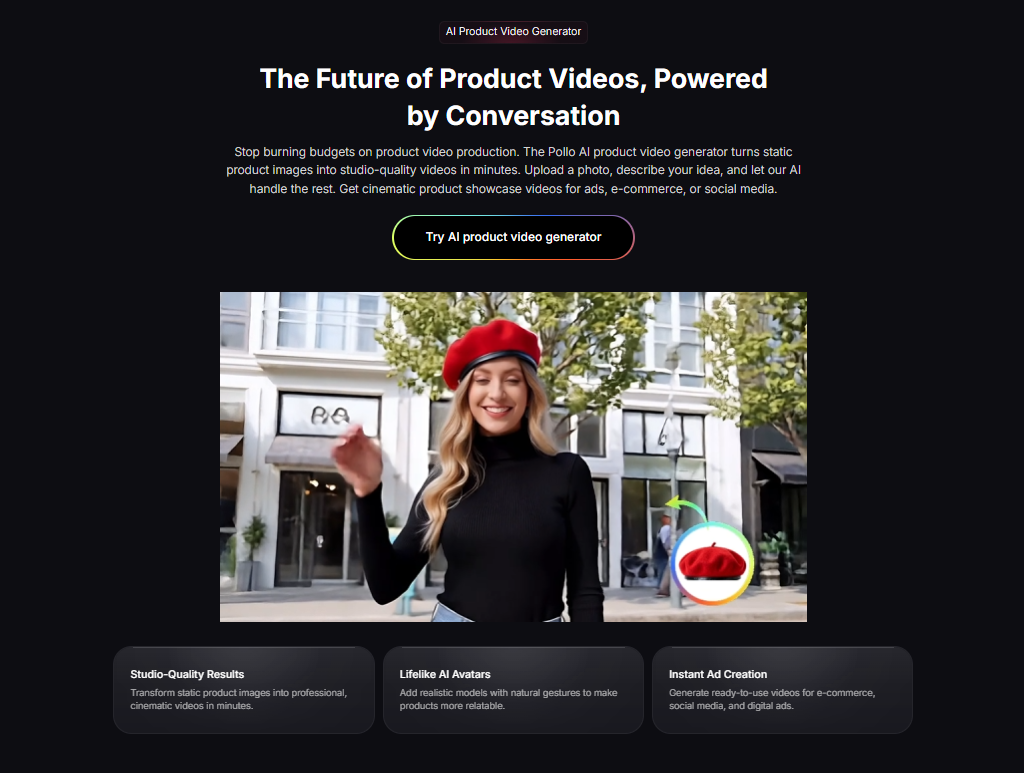
The most direct use case: upload a product photo, add a slow rotation or lifestyle motion prompt, and export a 5-second clip. Use it as the hook in a Meta or TikTok ad. The motion stops thumbs from scrolling past your product.
Pinterest Videos
Pinterest rewards video pins with higher distribution. Ecommerce brands generate dozens of product videos from their existing photo catalogs and publish them across product boards. One photo becomes multiple video pins with different motion prompts.
TikTok Ads
TikTok's ad algorithm favors native-feeling content. Product videos generated from real product photos feel more organic than polished studio footage. The "rougher" aesthetic often outperforms highly produced ads on TikTok.
Affiliate Creatives
Affiliate marketers promoting ecommerce products use image-to-video to generate unique creatives for each offer. Instead of using the same stock footage every other affiliate is running, you can produce motion-based ads from the actual product images.
UGC-Style Ads
Some platforms, including Pollo AI, offer AI UGC workflows that combine product images with synthetic creator-style footage. The result looks like a real unboxing or review video without filming anything. For dropshippers and small brands, this is a massive time and cost saver.
How Affiliate Marketers Use Image-To-Video
Affiliate marketing lives and dies by creative testing. The affiliates who win are usually the ones who can produce more ad variations faster than the competition. Image-to-video AI directly supports that advantage.
Hook Testing
The first 3 seconds of a video ad determine whether someone keeps watching. Affiliates generate multiple motion variations from the same product image — zoom in, pan left, subtle object movement — and test each one as a separate ad. The winning hook gets scaled; the losers get killed within 24 hours.
Creative Production At Scale
A single affiliate offer might need 20–50 ad creatives per month to stay ahead of ad fatigue. Filming that volume is impossible for most solo operators. Image-to-video lets one person produce that volume from a desk in an afternoon.
Pinterest Traffic
Pinterest is one of the highest-intent traffic sources for certain niches — home, fashion, wellness, and crafts. Video pins get more distribution than static pins. Affiliates turn product and lifestyle images into short video pins and link them directly to landing pages or blog posts.
TikTok Content
Organic TikTok content drives free traffic when it hits. Affiliates use image-to-video to turn screenshots, product photos, and AI-generated images into short TikToks with motion hooks. The content feels native to the platform and doesn't require showing your face or filming anything.
Why We Recommend Pollo AI For Image-To-Video
Pollo AI — The Most Practical Choice For Beginners
After reviewing the current platforms, Pollo AI is the tool we recommend first to anyone asking how to turn images into videos. It's not because it's the absolute best at every single thing — it's because it delivers the best overall experience for the people who actually need this technology.
- Ease of use
- Upload → prompt → generate. Most users get a usable clip in their first 10 minutes.
- Pricing
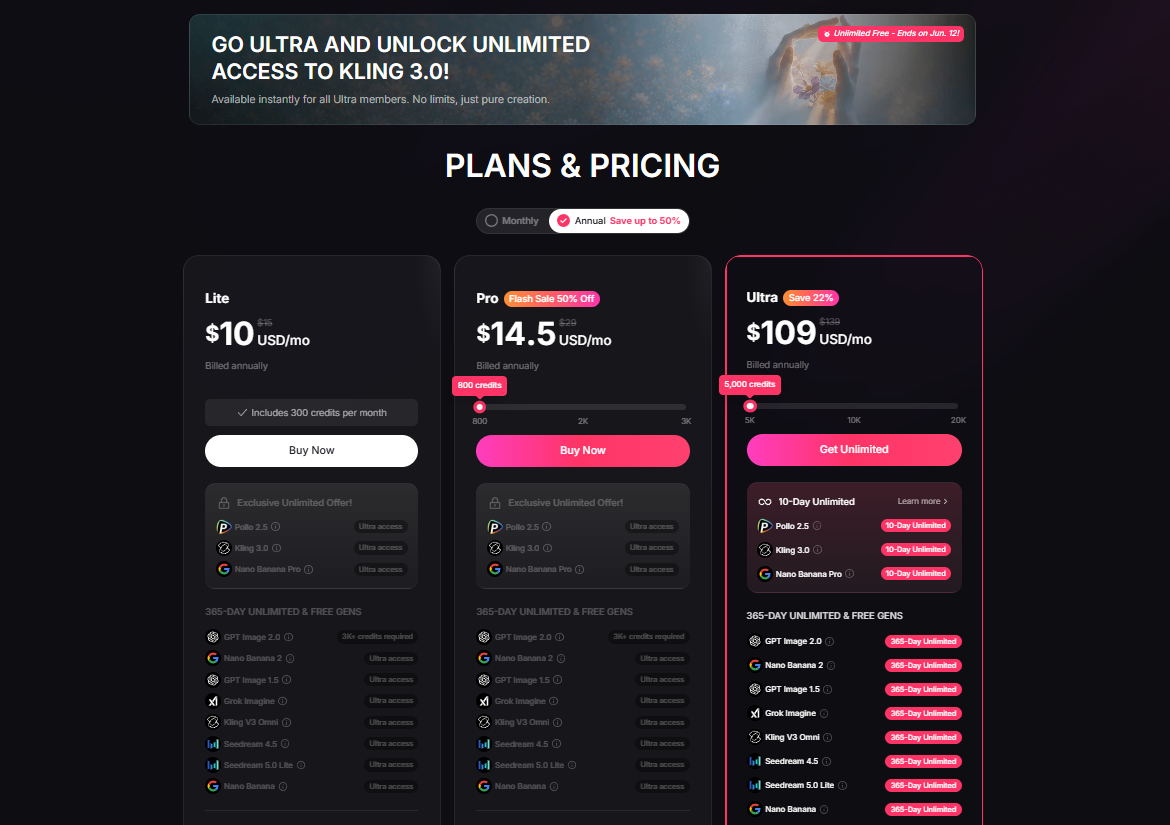
- Free plan to test. Paid plans start at $10/mo — cheaper than stacking multiple tools.
- Templates
- Pre-built product video and UGC templates eliminate the need to learn prompting from scratch.
- Multiple AI models
- One subscription includes Kling, Hailuo, PixVerse, and more. No tool-hopping.
- Commercial rights
- Paid plans include full commercial usage. Run the videos in paid ads, client work, and monetized channels legally.
Final Verdict
Turning images into videos with AI has gone from a novelty to a genuine production tool in under two years. The quality is now high enough for commercial use, the pricing is accessible to solo creators, and the workflow is simple enough that beginners can produce their first clip in minutes.
Who should use image-to-video AI? Almost anyone producing short-form content, running paid social ads, or building an ecommerce brand. The technology is particularly valuable for people who can't or don't want to film traditional video — dropshippers, affiliate marketers, faceless creators, and small brands without production budgets.
For beginners, the best entry point is a platform with a free plan, a clean interface, and enough model variety to experiment. That's exactly what Pollo AI offers.
For advanced users who need cinematic depth or hyper-realistic physics, Runway and Kling are worth the higher price. But for the daily workflow that most creators and marketers actually run, Pollo AI's all-in-one approach is the smarter investment.
⭐ Our Recommendation
Start with Pollo AI's free plan. Upload one of your own images, follow the six-step workflow above, and evaluate the output on your actual use case. If the quality meets your standard, the Pro plan is where the value compounds — multi-model access, commercial rights, and enough credits for consistent weekly production.
Related Reading
- Pollo AI Review 2026 — full breakdown
- Pollo AI Pricing — every plan compared
- Best AI Image-To-Video Generators — full comparison
- Best AI Video Tools — broader category roundup
- Holo AI Review — AI UGC alternative
- Holo AI vs Creatify — AI UGC head-to-head
Frequently Asked Questions
Can AI really turn a single image into a video?
Yes. Modern AI image-to-video generators analyze the contents of a still image and predict what motion would look natural. The result is a short video clip — usually 5 to 10 seconds — that starts from your original image and animates it.
How long does it take to generate a video from an image?
Most tools generate a 5–10 second clip in under 2 minutes. Some platforms deliver results in 30–60 seconds during off-peak hours. The exact time depends on the AI model, video length, resolution, and current server load.
Which AI tool is the easiest for beginners?
Based on our review of the current platforms, Pollo AI is the easiest for beginners. Its dashboard is built around templates, preset motion prompts, and a simple upload-and-generate workflow. Most users produce their first usable clip within 10 minutes.
What is the best free AI image-to-video tool?
Pollo AI, PixVerse, and Pika all offer free plans. For beginners who want to test image-to-video without paying, Pollo AI's free plan is the most practical — it gives you enough credits to see real results on your own images before committing to a paid plan.
Do I need special image formats or sizes?
Most tools accept standard formats like JPG, PNG, and WebP. Vertical images (9:16) work best for TikTok, Reels, and Shorts. Horizontal (16:9) is better for YouTube and desktop ads. Some tools let you crop or adjust aspect ratio after upload.
Can I use AI-generated videos for commercial purposes?
Most paid plans include commercial rights. Free plans typically do not. If you plan to run paid ads, publish monetized content, or deliver videos to clients, upgrade to a paid plan and confirm the commercial terms in the platform's license.
What types of images produce the best results?
High-resolution product photos, clean portraits, well-lit lifestyle shots, and landscapes with clear focal points all produce strong results. Low-resolution, blurry, or overly cluttered images tend to produce worse motion and artifacts.
How does image-to-video differ from text-to-video?
Text-to-video generates both the scene and the motion from a written prompt. Image-to-video starts from an existing image you provide and animates it. Image-to-video gives you more control over the starting frame, which makes it ideal for product ads and branded content.
Can I combine multiple images into one longer video?
Some tools support first-frame and last-frame inputs, letting you chain images into longer continuous scenes. For more advanced editing, you can generate multiple short clips and stitch them together in a standard video editor.
Why do we recommend Pollo AI for image-to-video?
Pollo AI bundles multiple frontier video models into one subscription, includes commercial rights on paid plans, and offers a beginner-friendly workflow built specifically for creators and ecommerce. It strikes the best balance of ease, quality, and price for most users.
Disclosure: This article contains affiliate links. If you sign up for a paid plan through our links, we may earn a commission at no extra cost to you. Our editorial recommendations are independent of any commercial relationship.